Flight Map
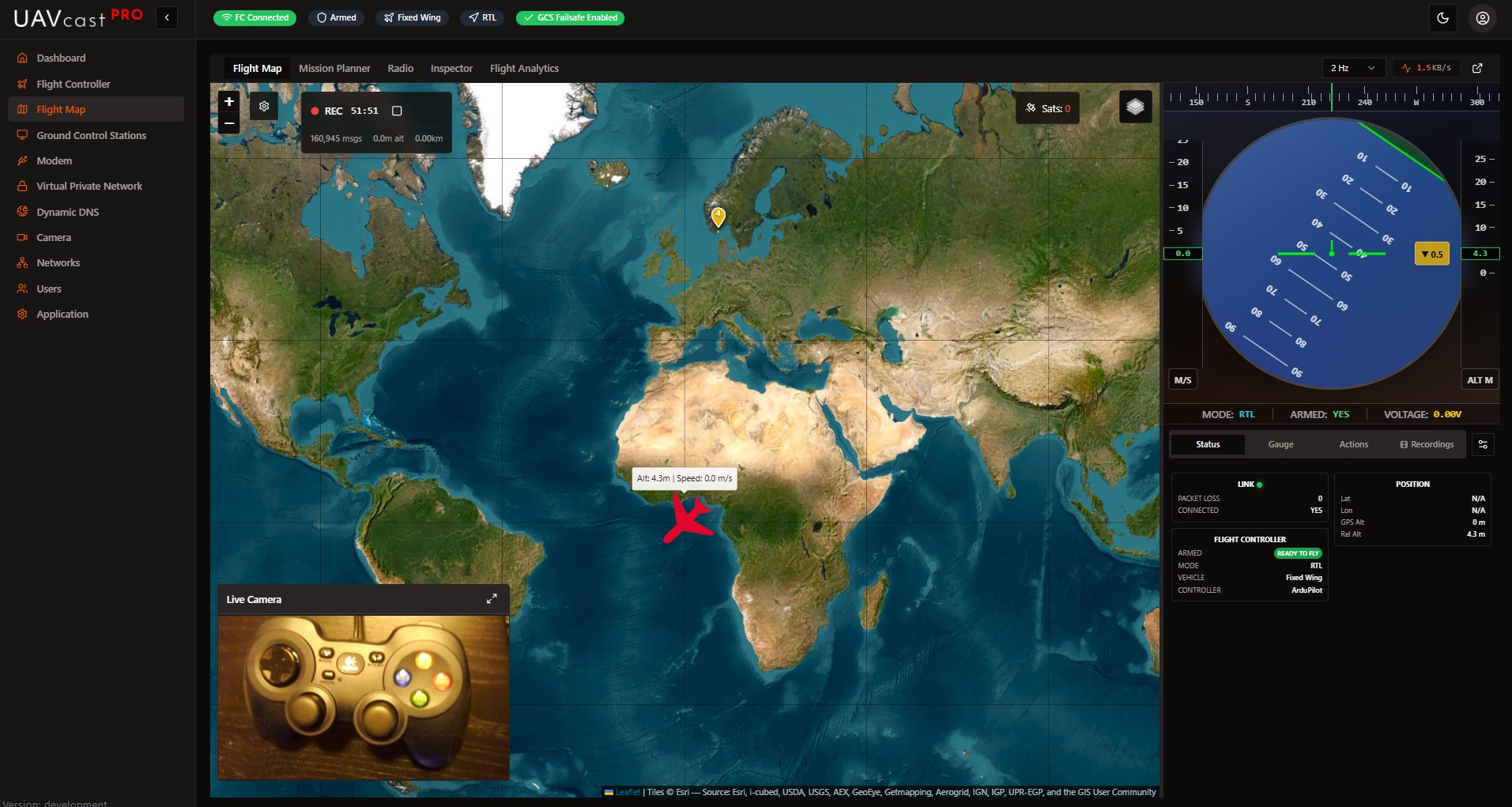
The Flight Map is your central command interface for real-time flight monitoring and control. It provides live telemetry visualization, flight commands, mission planning, and comprehensive data analysis tools.
Overview
The Flight Map page features a tabbed interface with five main sections:
| Tab | Description |
|---|---|
| Flight Map | Interactive map with real-time vehicle tracking |
| Mission Planner | Create and upload autonomous flight missions |
| Radio | RC channel input visualization |
| Inspector | MAVLink message debugging and analysis |
| Flight Analytics | Telemetry data graphing and log analysis |
Flight Map Tab
Interactive Map
The map displays your vehicle's real-time position with:
- Vehicle Marker: Rotating icon showing heading (quadcopter or plane based on vehicle type)
- Flight Path Trail: Configurable history trail showing recent flight path
- Home Marker: Launch position with distance indicator
- Mission Waypoints: Numbered markers with route lines when mission is loaded
Map Controls:
- Layer Toggle: Switch between Street Map (OpenStreetMap) and Satellite (Esri) views
- Auto-Pan: Automatically keeps vehicle centered in view
- GPS Satellites: Shows current satellite count
- Right-Click Menu: Quick access to Return to Launch command
Map Settings
Click the settings icon to configure:
- Auto-Pan: Enable/disable automatic camera following
- Show Aircraft Heading: Display heading rotation on marker
- Flight Path Trail:
- Toggle trail visibility
- Adjust trail length (50-1000 points)
- Custom trail color
- Clear trail button
- Home Marker: Toggle visibility and distance display
Live Camera Overlay
When camera preview is enabled, a draggable video window appears on the map:
- Drag: Move window anywhere on the map
- Resize: Drag edges or corners to resize
- Minimize/Maximize: Toggle compact mode
- Position and size are saved automatically
Sidebar Views
The right sidebar provides three viewing modes:
Data View
Displays telemetry in customizable status cards:
| Card | Information |
|---|---|
| Link | Connection status, packet loss |
| Flight Controller | Armed state, flight mode, vehicle type |
| GPS | Fix type, satellites, altitude (relative/MSL), coordinates |
| Battery | Voltage, current, remaining percentage |
| Speed | Ground speed, air speed, throttle, heading |
| Attitude | Pitch, roll, yaw, climb rate |
| Home | Home coordinates, distance from home |
| Telemetry | Data rate (KB/s), messages/sec |
Gauge View
Classic analog flight instruments in a 2x2 grid:
- Airspeed Indicator: Ground speed visualization
- Altitude Indicator: Current altitude with trend
- Compass: Heading direction indicator
- Vertical Speed: Climb/descent rate
HUD View
Head-Up Display overlay showing:
- Heading tape (top)
- Speed tape (left)
- Altitude tape (right)
- Artificial horizon with pitch ladder (center)
Actions Tab
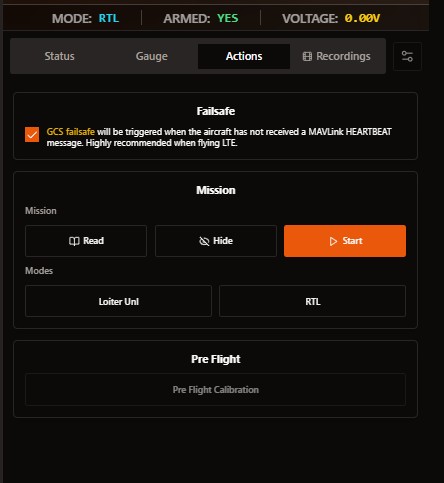
Flight control commands accessible from the sidebar:
Failsafe
- GCS Failsafe: Enable heartbeat monitoring. Vehicle triggers failsafe if no MAVLink heartbeat received. Highly recommended for LTE flights.
Mission Control
- Read: Download current mission from flight controller
- Hide: Remove mission waypoints from map display
- Start: Begin autonomous mission execution (requires confirmation)
Flight Modes
- Loiter Unlimited: Vehicle holds position and circles at current location
- Return to Launch (RTL): Vehicle returns to home position
Pre-Flight
- Pre-Flight Calibration: Run pre-arm checks (disabled when armed)
All flight commands require confirmation dialogs. Ensure your aircraft is in a safe location before executing commands.
Mission Planner Tab
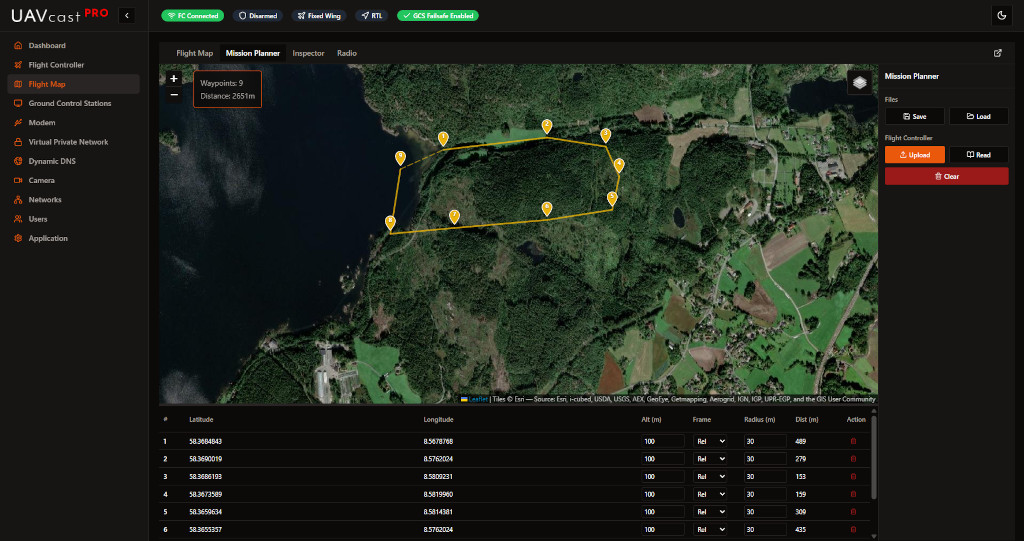
Create autonomous flight missions by placing waypoints on the map.
Creating a Mission
- Click on the map to add waypoints
- Set default altitude and radius when prompted
- Drag waypoints to adjust position
- Edit waypoint details in the table
Waypoint Table
Each waypoint displays:
- #: Waypoint number
- Latitude/Longitude: GPS coordinates
- Altitude: Height in meters
- Frame: Relative, Absolute, or Terrain
- Radius: Acceptance radius in meters
- Distance: Distance from previous waypoint
Mission Actions
| Button | Action |
|---|---|
| Save | Save mission to file on device |
| Load | Load saved mission file |
| Upload | Send mission to flight controller |
| Read | Download mission from flight controller |
| Clear | Remove all waypoints |
Altitude Frame Options
- Relative (Rel): Altitude above takeoff point
- Absolute (Abs): Altitude above sea level (MSL)
- Terrain (Ter): Altitude above ground level (requires terrain data)
Radio Tab
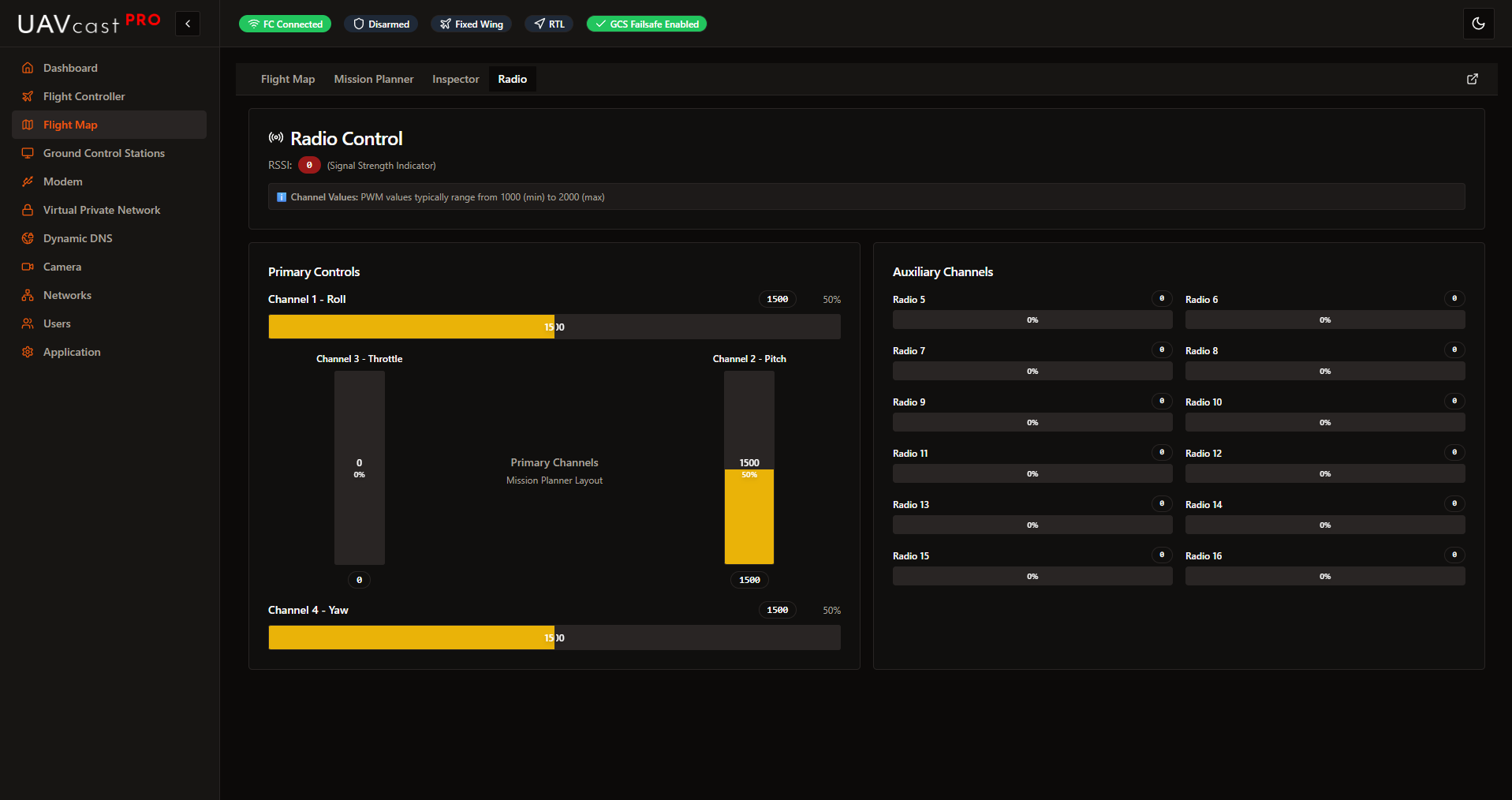
Real-time visualization of RC transmitter inputs.
Primary Controls
Mission Planner-style layout showing the four main channels:
- Channel 1 - Roll: Horizontal bar with center reference
- Channel 2 - Pitch: Vertical bar with center reference
- Channel 3 - Throttle: Vertical bar (0-100% range)
- Channel 4 - Yaw: Horizontal bar with center reference
Auxiliary Channels
Channels 5-16 displayed in a grid layout, each showing:
- PWM value (typically 1000-2000)
- Percentage bar
- Channel number
Signal Strength
- RSSI: Received Signal Strength Indicator
- PWM values: 1000 (min) to 2000 (max)
Inspector Tab
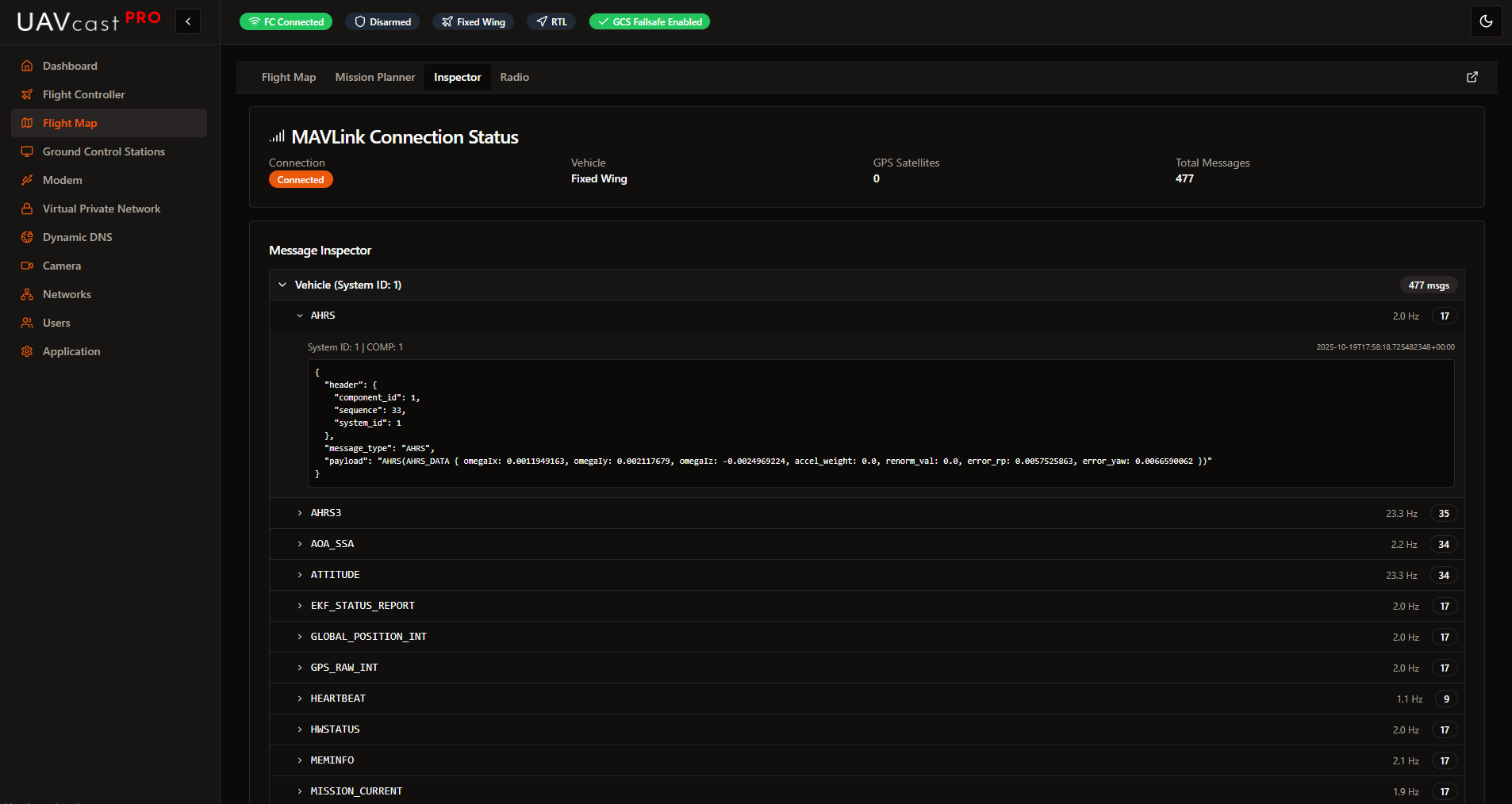
Debug and analyze MAVLink communication.
Connection Status
Displays current connection information:
- Connection state (Connected/Disconnected)
- Vehicle type
- GPS satellite count
- Total messages received
Message Inspector
Hierarchical tree view showing:
- Vehicle: Grouped by System ID
- Message Types: All received MAVLink message types
- Message Data: Expandable JSON payload
- Frequency: Messages per second (Hz)
- Count: Total messages of each type
Useful for debugging MAVLink communication issues and verifying data flow.
Flight Analytics Tab
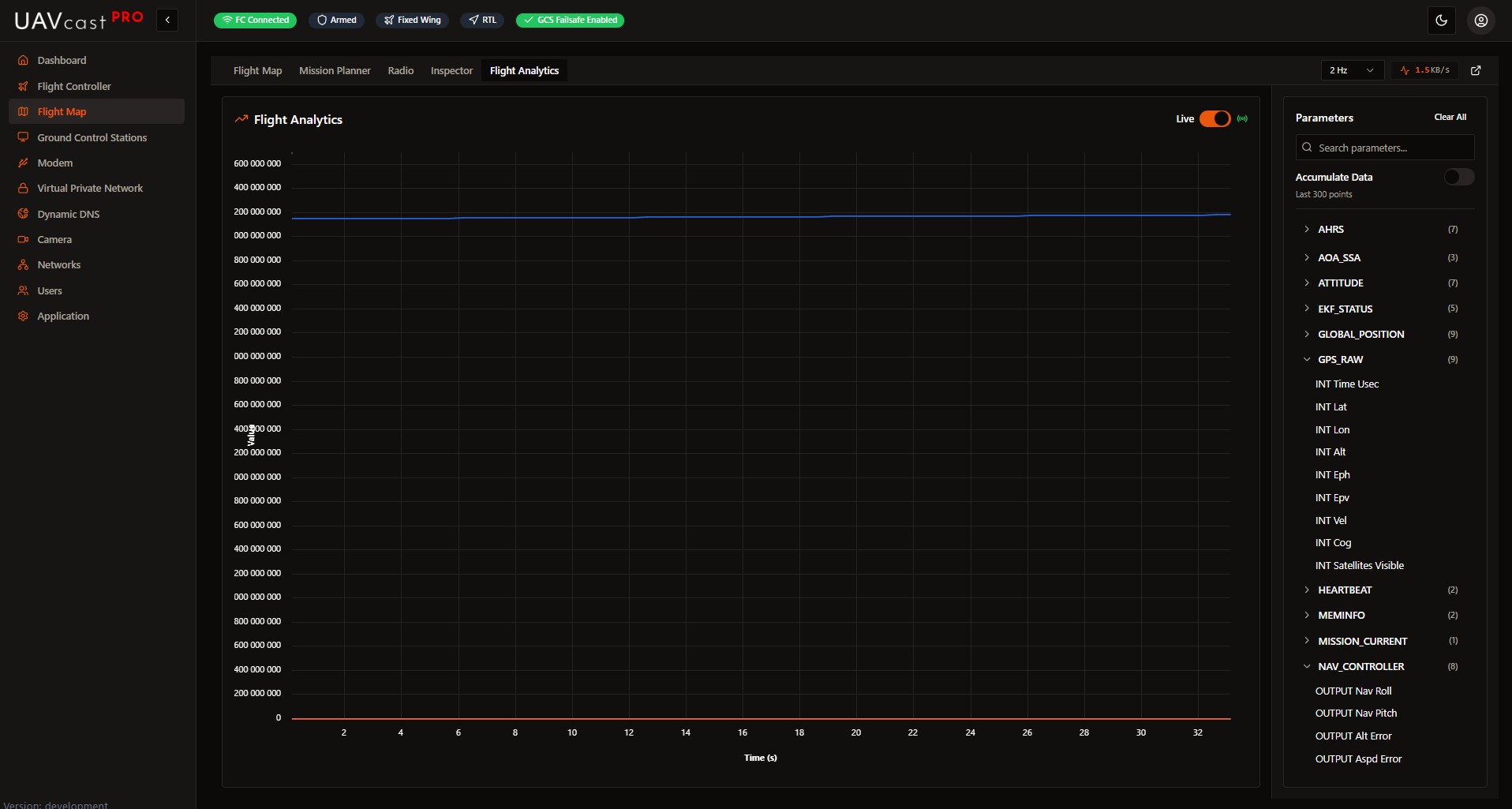
Graph and analyze telemetry data in real-time or from recorded logs.
Live Mode
- Real-time graphing of selected parameters
- Up to 6 parameters displayed simultaneously
- Configurable data accumulation (all points or rolling window)
File Mode
- Click Open Log File
- Select a recorded .tlog file
- Parameters populate automatically
- Select parameters to graph
Available Parameters
Search and select from all available MAVLink parameters including:
- Altitude, speed, heading
- Battery voltage, current
- GPS coordinates
- Attitude (pitch, roll, yaw)
- And many more...
Graph Controls
- Accumulate Data: Store all points vs. rolling window
- Clear All: Reset selected parameters
- Search: Filter parameter list
Flight Recordings
Record MAVLink telemetry for later playback and analysis.
Recording Controls
- Auto-record on Armed: Automatically start recording when vehicle arms
- Start Recording Now: Manual recording trigger
- Stop Recording: End current recording session
Recording List
Each recording shows:
- Mission name and timestamp
- Duration (mm:ss)
- Message count
- Maximum altitude
- Total distance traveled
Recording Actions
- Play: Replay recording on the flight map
- Download: Export as .tlog file
- Rename: Change recording name
- Delete: Remove recording
Playback Mode
When playing a recording:
- Timeline slider appears for seeking
- Telemetry replays on the map
- Vehicle position animates along recorded path
Detached Map Window
For multi-monitor setups, open the flight map in a separate window:
- Click the "Open in new window" button
- A 1920x1080 window opens with the full map interface
- Ideal for dedicated flight monitoring display
Troubleshooting
No Telemetry Data
- Verify flight controller is connected and configured
- Check MAVLink connection in Flight Controller settings
- Ensure correct baud rate and port
- Look for connection status in Inspector tab
Map Not Loading
- Check internet connection (required for map tiles)
- Try switching between Street and Satellite layers
- Clear browser cache
Video Overlay Not Showing
- Enable Live Preview in Camera settings
- Start the camera service
- Verify camera is streaming
Mission Upload Fails
- Ensure vehicle is connected
- Check flight controller is not armed
- Verify waypoints are valid (within range, proper altitude)
Related Pages
- Camera - Configure video streaming
- Flight Controller - MAVLink connection settings
- Ground Control Stations - External GCS configuration